
A video can look clear in a media player and still put the product behind an ad interface. Before accepting its framing for a placement, check the exact export with the intended ad caption, format and applicable regional layout. Record that setup with the decision: a later change can make an earlier check incomplete.
Identify the setup before judging the frame
Start with the destination, not a generic safe rectangle. TikTok’s in-feed specifications say the safe zone depends on the video dimensions, ad caption length and additional formats. The page provides separate standard LTR and Arabic-region RTL files, including versions for placements with anchors. Select the current reference for the actual intended setup; the language spoken in the video alone does not identify the correct regional file.
Here, “ad caption” means the description supplied to the advertising platform. It is different from subtitles or text embedded in the video. Both can affect what the viewer can read, but correcting a transcript does not establish that the surrounding ad description leaves the product visible.
- Record the exact export filename or version and its dimensions.
- Identify the intended app, placement and regional configuration.
- Keep the actual ad description with the check, rather than placeholder copy.
- Record any added format, including whether an anchor is part of the setup, and which current official reference applies.
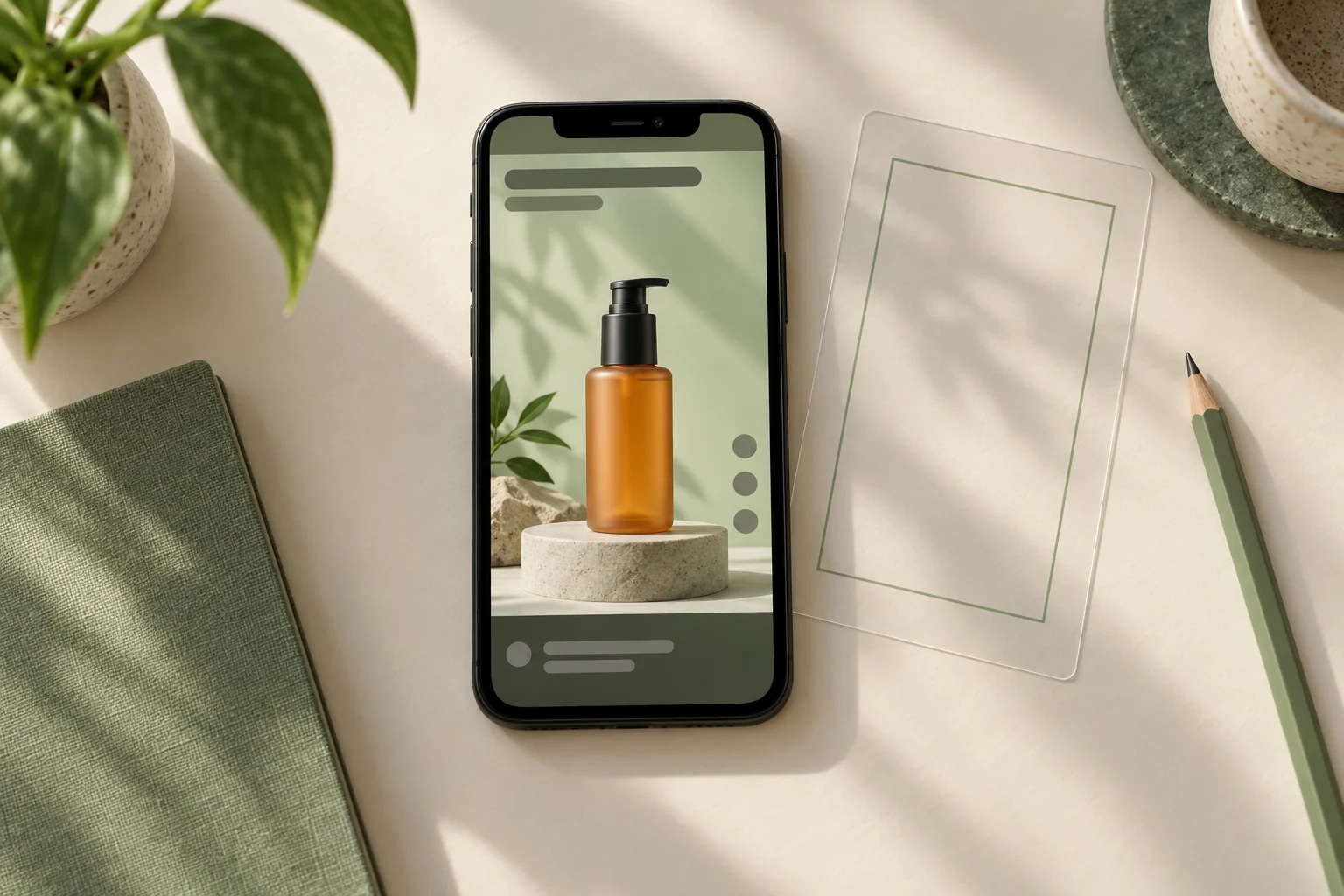
Use the platform’s current specifications and applicable downloadable file. Do not turn a generic overlay from another project into a universal rule or assume the Arabic version is simply an English layout mirrored. The illustrative cover above is not a usable safe-zone template.
Inspect what the preview actually shows
In TikTok Ads Manager, use the preview available during ad creation or editing and select the relevant app and format. The official guide describes seeking a particular video frame and expanding the preview. Review the full sequence as well: the pump, label or hand movement may approach interface elements only briefly. Note the exact moment where the intended action becomes hard to understand.
Compare the export and the intended setup. Check whether the product detail, embedded text and essential movement remain understandable with the visible interface and actual ad description. A clear first frame does not cover the rest of the clip. If the preview uses different text or a different format, record the mismatch instead of treating it as the requested check.
TikTok warns that previews are not device-specific and can differ from the live display. Its guide also says a Smart+ preview selects a sample creative-and-text combination; you cannot specify a particular combination to preview there. A sample therefore does not establish that every automatic combination was examined. The fictional exercise below assumes a manually configured setup and makes no claim about testing a real ad account or device.
Keep a separate decision for each setup
Imagine a brand commissioning a short demonstration of an unbranded pump bottle. The following rows are planning examples, not observations from an actual preview. Export “bottle-v3.mp4” and every proposed description are fictional. No product benefit or campaign result is implied.
Fictional configuration and recheck worksheet
Scroll sideways to see all columns.
| Proposed setup | What to check together | What the decision may cover |
|---|---|---|
| A: Arabic-region in-feed, no anchor; description “See how the pump opens.” | bottle-v3.mp4, that exact description and the applicable Arabic-region reference; inspect the opening movement throughout the clip. | Only setup A if it is actually checked. Record any obstruction and the unresolved action; do not mark it clear in advance. |
| A revised: same video; longer description “See how the pump opens before placing the bottle on the shelf,” plus a proposed anchor. | The new description, applicable anchor format and current reference. Repeat the preview even though the MP4 is unchanged. | The earlier A decision does not cover these changes. Keep this version pending until reviewed. |
| B: a separately requested region using the standard LTR reference; no anchor. | The actual intended region and setup, its final description, the applicable standard file and the same export. | A separate check for B. Do not copy the Arabic-region decision into this row. |
The useful distinction is between the video file and the conditions around it. If a reviewer finds the bottle pump hidden, describe the moment and the configuration in the note. Agree on the relevant correction with the creator or media owner, then check the resulting export and setup again. Avoid a general “approved” label that loses which version was inspected.
Record what changed and what remains open
Keep a short record with the collaboration so a teammate can reproduce the check. Fill in findings only after inspecting the actual preview. A filename and a screenshot can help identify a moment, but a screenshot alone does not establish that the complete sequence was reviewed.
Placement review record
Export filename/version and dimensions:
Intended app, placement and region:
Exact ad description:
Added format or anchor:
Official reference used and date consulted:
Preview configuration actually displayed:
Sequence checked; any problem moment and observation:
Decision, unresolved item and responsible person:
Replacement export or setup change requiring recheck:
Reviewer and review date:
Limits: devices or automatic combinations not examined:
- Reopen the check when the export, crop, embedded text, ad description, placement, regional setup or added format changes.
- If the preview cannot show the requested combination, record that limitation and leave the unexamined configuration unresolved.
- Separate a framing decision from usage permission, platform policy approval, authorization to launch and campaign performance.
The aim is a decision someone can trace to a specific file and setup. It can support the next production or media step without promising that every device or future variation will display identically.
How this fits UGC Stage
UGC Stage is an application in development connecting brands and UGC creators. Its planned collaboration features bring conversations, references and delivery files together. Use that conversation to identify the export being discussed and send a precise note about the ad setup and moment that needs attention. The actual placement preview happens in your advertising tools; Stage is not presented as an ad previewer or automatic approval service. Keep the agreed file and the resolved review note together, and join the brand waitlist to hear when the application launches.
Explore the applicationSources and notes
Practical guidance from the UGC Stage team. Examples are educational, not customer results or income guarantees.