
Review captions while listening to the exact video you intend to approve. Check what was actually said, when each caption appears and whether the text carries the sound information needed to understand the scene. Then inspect the corrected export in its intended player. A polished transcript or a clean-looking screen alone cannot establish that the captions match the video.
Identify the file and the kind of text
This guide uses captions to mean text representing speech and relevant sounds in the same language as the recording. Translated subtitles require an additional review of meaning in the destination language. Terminology varies, so state the working language and deliverable explicitly. Here the fictional recording and its captions are Arabic; the English explanations help an English-speaking reviewer follow the example.
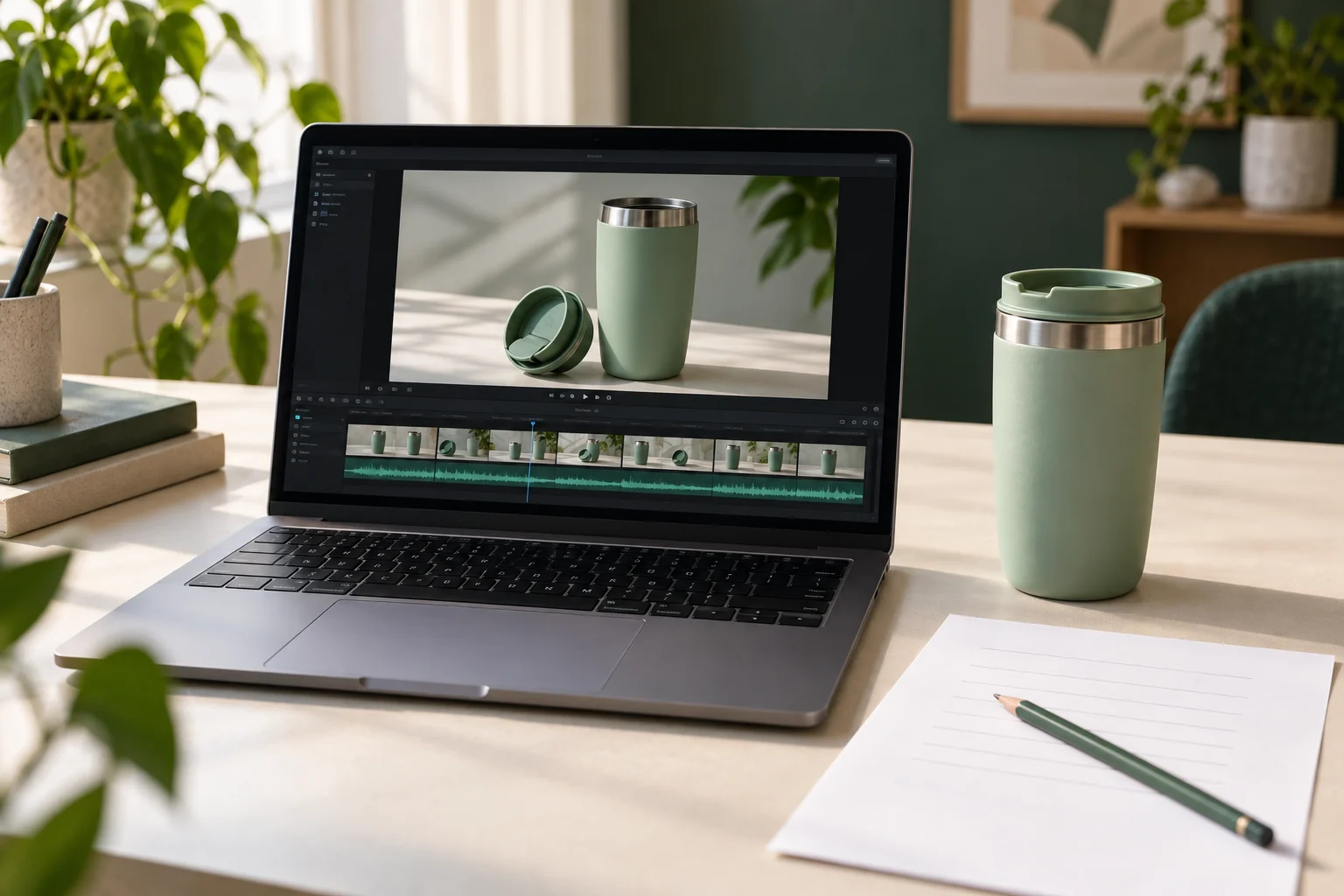
Open the agreed video version and identify whether captions are embedded in the picture or supplied as a selectable track. Review the actual pairing of video and caption file when they are separate. Keep the approved brief and product terminology available, but treat the final audio as the reference for what the captions should represent.
YouTube’s help page warns that automatic captions can misrepresent speech because of accents, dialects, mispronunciations or background noise. It recommends reviewing and editing them. A tool-generated first pass can start the work; it cannot replace listening to the delivered recording.
Compare meaning with what you can hear
Play the short video from beginning to end with sound, pausing and replaying as needed. Compare each caption with the audible phrase, paying particular attention to negation, names, quantities and units. Do not silently replace a dialect expression with wording that changes the claim. A fluent-looking sentence can still say the opposite of the speaker.
- If the audio is clear and the text is wrong, request a caption correction that preserves the spoken meaning.
- If you cannot understand a word, mark the uncertainty and ask the creator to clarify or supply a clearer recording. Do not guess from the script or invent a speaker name.
- If the audio itself contradicts the verified product information, flag the spoken claim for correction. Changing only the caption would leave two conflicting messages. Agree the audio/video change, then review captions against that new version.
W3C’s transcription guidance emphasizes fidelity to the final audio. A script is useful context, but it may differ from the recorded performance. Keep correction of a transcription error separate from a proposed rewrite of the delivery.
Example: a fictional storage-jar demonstration
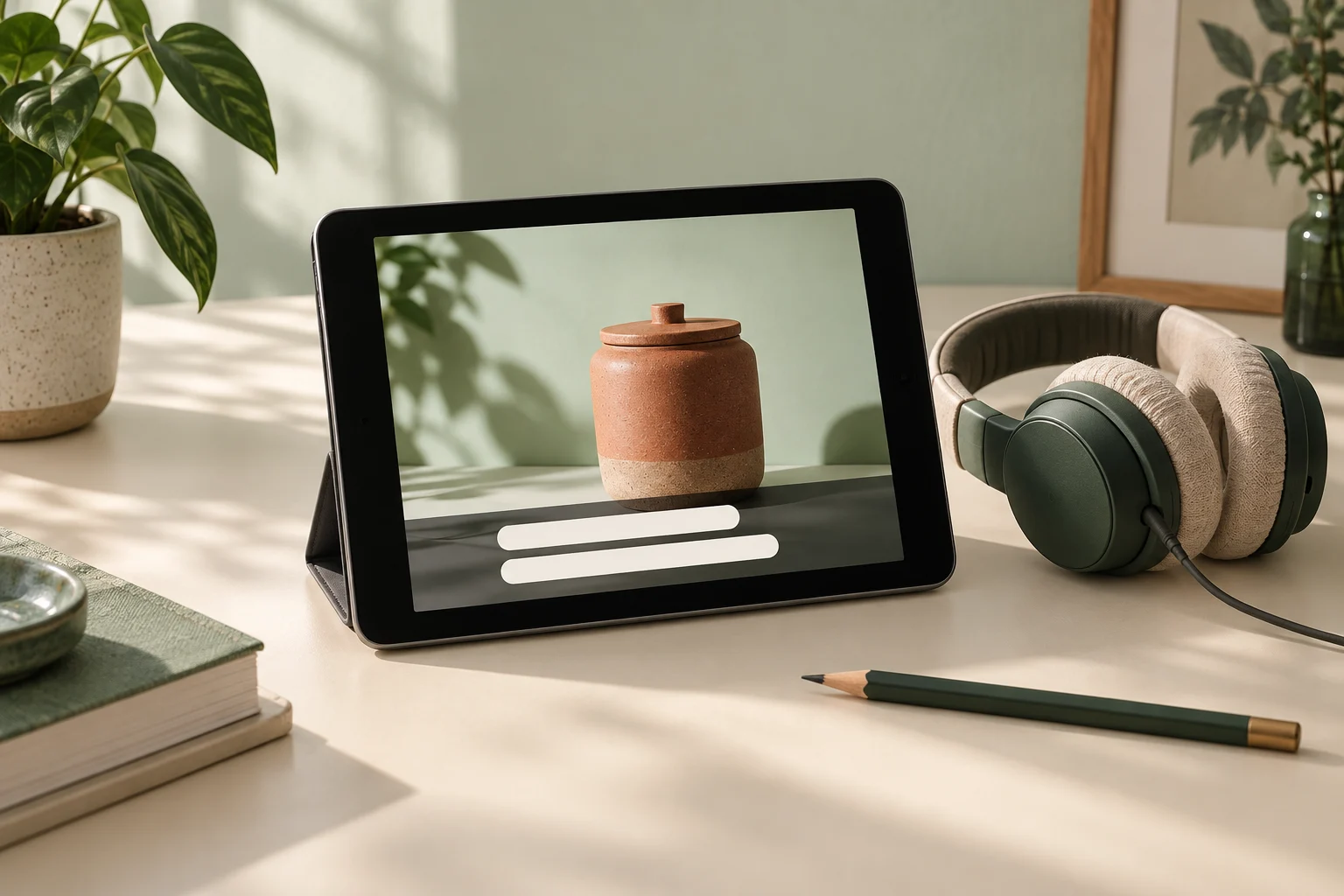
The following observations and times are invented to show the review method. There is no actual recording, product test or customer result behind them. Assume jar-demo-v1.mp4 has Arabic speech and embedded Arabic captions. The English glosses explain the Arabic; they are not an additional subtitle deliverable.
Fictional caption notes for jar-demo-v1.mp4
Scroll sideways to see all columns.
| Moment | Audible content and displayed text | Correction to request |
|---|---|---|
| 00:03–00:05 | Audio: «لا أضع الملعقة داخل الوعاء» (I do not put the spoon inside the jar). Caption omits «لا». | Restore the negation so the caption does not reverse the sentence. Check the full phrase with the audio. |
| 00:08–00:10 | Audio: «أضع ملعقتين بجانب الوعاء» (I put two spoons beside the jar). Caption says «ملعقة» (one spoon). | Correct the quantity to match the audible «ملعقتين» and replay the sentence. |
| 00:13–00:15 | Audio: «أرفع الغطاء» (I lift the lid). Its caption appears only after the next sentence has started. | Align the cue with its own spoken phrase; inspect both this cue and its neighbour after adjustment. |
| 00:20–00:22 | A brief knock on the lid is heard off-screen, followed by «هذا هو الصوت» (That is the sound). The text represents only the speech. | Add an accurate cue such as [knocking on lid] / [طرق على الغطاء], because the reference to the sound otherwise loses its meaning. |
The last row is about a sound needed to understand this invented scene. It does not mean every click or breath needs a label. Likewise, identify a speaker when the distinction matters and the picture does not make it clear. Use a verified name or a useful neutral description; do not infer someone’s identity from their voice.
Check timing and readability in context
W3C describes captions as synchronized text for speech and non-speech audio needed to understand the content. Watch for captions arriving with the wrong phrase, disappearing before you can follow the text, or lingering into unrelated speech. A correct transcript with the wrong cue timing is still a problem.
- Play at the intended viewing speed. Pause to diagnose a problem, then replay normally to judge the correction.
- Break text at sensible phrase boundaries. Inspect Arabic joining, punctuation and the order of mixed Arabic, Latin names and numbers in the actual rendered captions.
- Preview on a phone and in the intended placement when available. Check contrast and whether platform controls or the picture obscure the caption. Do not assume the editing preview matches every player.
- If selectable captions are part of the delivery, enable the supplied track and confirm the correct language and video version. Check embedded and selectable versions separately if both were agreed.
Use the requirements of the actual destination and your agreement. This worksheet does not prescribe a universal font size, character limit or cue duration. A supplementary muted pass can reveal missing information, but it cannot replace comparing the captions with sound.
Send precise corrections and recheck the export
Give the creator one consolidated record tied to the reviewed version. Keep an unresolved audio question open instead of marking it corrected because someone changed the text. The following fields make the distinction visible without requiring a specialist review platform.
Caption review record
Video filename/version:
Caption track/file or embedded version:
Language and intended player/placement:
Timestamp or range:
What is actually audible, including uncertainty:
Caption currently shown:
Issue: meaning / timing / needed sound or speaker / readability:
Requested correction or question:
Does the source audio need revision?
Corrected video and caption version received:
Rechecked with sound and surrounding cues:
Remaining question or approval of this exact version:
After changes, watch the complete short export again with sound. Check each requested correction, neighbouring cues and the beginning and ending of the file. If the edit moved speech, old timestamps may no longer identify the same moment. Record the new version and repeat the relevant timing checks.
Approve only the files and tracks you actually reviewed, leaving any unresolved point explicit. This is a practical caption review, not certification of accessibility compliance or a prediction of campaign results. The related delivery guide covers the broader acceptance decision.
How this fits UGC Stage
UGC Stage is an application in development connecting brands and UGC creators. Its planned collaboration workflow keeps conversations, references, files and feedback with the project. That context can help you keep the reviewed video version and the creator’s correction notes together. The worksheet in this guide is a manual review aid: compare audio and captions using your playback and editing tools. It does not describe a caption generator or automatic checking feature in Stage. Join the brand launch list to hear when the application becomes available.
Explore the applicationSources and notes
Practical guidance from the UGC Stage team. Examples are educational, not customer results or income guarantees.