
Choose one action the viewer should understand, prepare a permitted demo environment with made-up information, and record a short test on the actual phone. Replay that saved test before the full take. After editing, inspect the complete exported clip for the intended action, sound and any information you did not mean to include. A quiet phone is useful; the saved video is what you must check.
Plan one visible action
Agree on what the demonstration must explain, the required orientation and the expected delivery format. Choose an app and account you are permitted to demonstrate. Use an approved demo account or sample environment where available, and replace personal or customer information with clearly invented demo items. Sample data does not itself establish permission to show an interface.
Write a starting screen, an action and a visible result. Rehearse that path before recording, including any keyboard or menu that appears. Avoid wandering through a personal inbox, account settings or unrelated recent items just to reach the useful screen. Do not send a real message, make a purchase or expose a password merely to illustrate a flow; use an agreed demonstration route.
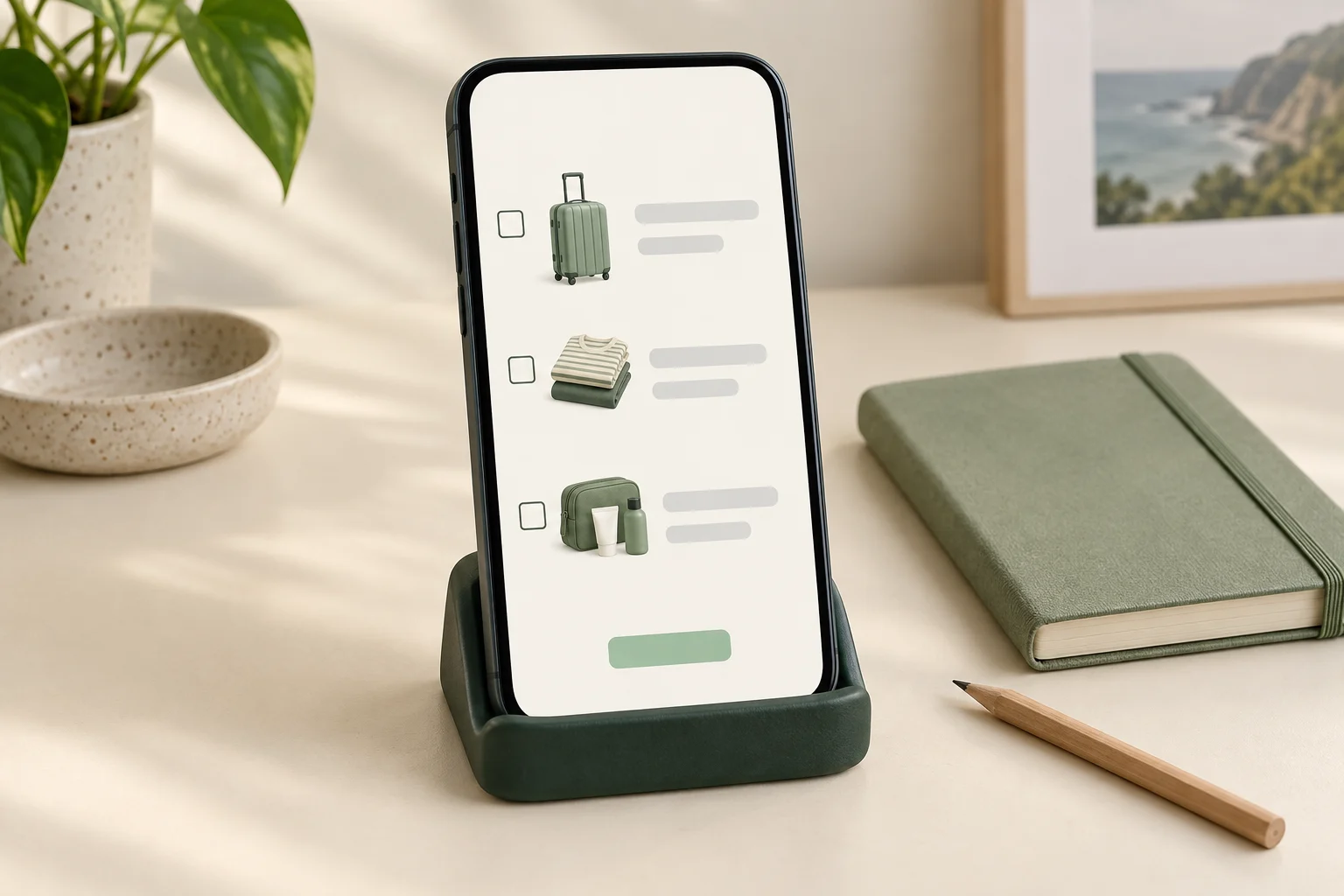
Our example below is a fictional packing-list app, not a tested product or UGC Stage feature. The intended story is simply adding one item to a prepared list and showing that it remains there. It does not need a tour of every screen.
Test the actual phone and audio
Apple documents built-in screen recording through Control Center and an optional microphone control. Google documents screen recording through Android Quick Settings, with available choices for audio and showing touches. Follow the official instructions for your device and software version; menu locations and available options vary. Browser emulation is not a test of the native phone recording.
Decide whether the deliverable needs app sound, live narration, later voiceover or no audio. Select only the controls your device actually offers, record a short part of the intended flow and listen to the saved file. Do not assume turning on the microphone captures app audio, or that choosing app audio also records your narration. Check the actual result before relying on it.
Apple notes that some apps may not allow audio or video recording. If the test produces a blocked screen, missing content or unusable audio, pause and agree on a supported demonstration method. Do not work around an app’s capture restrictions or replace a failed action with an edit that implies the product succeeded.
Reduce interruptions using the notification settings appropriate to your phone, but check their exceptions. Apple’s Do Not Disturb guidance explicitly allows selected people or apps to notify you. Focus is not proof that no banner can appear, and it does not hide information already inside the app. Check profile details, recent lists, keyboard suggestions and any background screen exposed along the rehearsed path.
Example: a fictional packing-list demonstration
These are invented planning choices and possible review findings, not observations from a phone test. The app, item and filenames are illustrative. Use the actual permitted interface and agreed scope for your assignment.
Fictional start, action and result plan
Scroll sideways to see all columns.
| Part | Planned screen content | What to check in the recording |
|---|---|---|
| Start | A prepared list named “Demo trip”, containing only made-up packing items. | The intended list is visible, with no personal profile, real itinerary or unrelated list. |
| Action | Add “Spare notebook” using the app’s normal input flow. | The tap and text entry are understandable; keyboard suggestions and any banner contain no unintended information. |
| Result | Show “Spare notebook” in the saved list. | The item is actually present and readable; the edit has not substituted a different outcome. |
| Audio | Silent screen capture, with separately recorded narration added later. | The final export contains the intended narration and no unintended microphone or app sound. |
Suppose a test shows a personal keyboard suggestion during entry. Correct the demo setup or input method and record a new test; switching off notifications would not address that specific issue. If the saved item is hard to see, adjust the demonstration or agreed framing and test again. Do not present these hypothetical fixes as guaranteed behavior on every phone.
Leave enough time around the action for a viewer to follow it, judged by playback rather than a universal number of seconds. If you edit pauses or add narration, keep the real order and result understandable. An attractive cut is not a reason to invent functionality.
Review the complete export before sharing
Watch the exported file from beginning to end, including the moments around typing, menus, transitions and the recording controls. Pause where small or brief details need inspection, and listen to the complete audio. Trimming the beginning and end does not remove information that appeared in the middle.
- Confirm that the intended action and result remain readable at the expected viewing size.
- Check visible names, messages, suggestions, account details, unrelated screens and unintended spoken audio.
- If unwanted information appears, correct the setup and rerecord where practical. If you edit or redact it, inspect the entire new export again, including movement and transitions.
- Identify the exact reviewed filename and version. A clean preview or an earlier take does not establish that a later export is ready.
App-demo recording review
Permitted app/interface and sample environment:
Device and software version:
Starting screen and invented data:
One action and expected visible result:
Intended audio and available capture setting:
Notification settings and known exceptions:
Short-test filename and actual playback finding:
Correction and retest result:
Chosen take and editing changes:
Final export filename/version:
Full picture-and-audio review completed:
Remaining issue or question before sharing:
Keep this note with the project so you can identify what was checked if another export is requested. It is a practical review record, not a guarantee that a setting or tool will catch every disclosure. Only share the version that meets the agreed demonstration and has completed your final review.
How this fits UGC Stage
UGC Stage is an application in development connecting creators and brands. Its planned portfolios let creators show selected video, photo and audio work. A concise app demonstration can be a practice sample of how you explain an action on screen, if you are allowed to show the interface and data. Label self-initiated work as practice and describe your actual recording or editing role; do not imply a client commissioned it. Prepare the sample with your own recording tools. Stage is not being presented here as a screen recorder or an automatic privacy checker. Join the creator launch list to hear when the application becomes available.
Explore the applicationSources and notes
Practical guidance from the UGC Stage team. Examples are educational, not customer results or income guarantees.