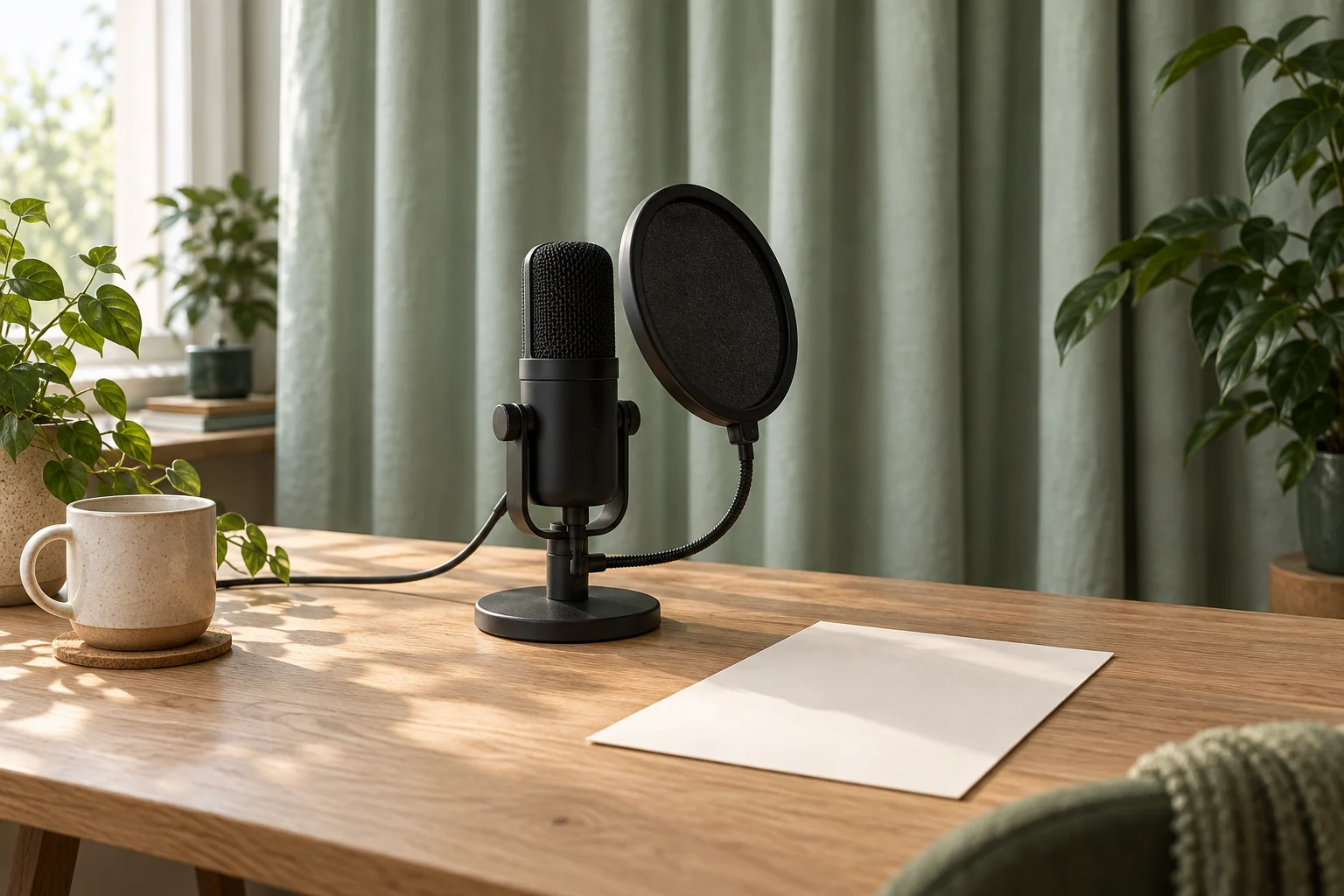


When music hides a word, locate the conflict before raising the whole soundtrack. Lower the music around the spoken phrase, listen through its beginning and ending, and check whether a short pause causes an unwanted surge. The useful result is understandable speech with deliberate music transitions, not a particular slider percentage.
Locate the word and the competing sound
Keep narration and added music separately adjustable in the edit. Listen to the phrase without music, then restore the music at the same comfortable device playback level. If the words are already unclear alone, return to the recording or voice edit. Turning down music cannot restore a missing syllable or repair a damaged take.
If the problem appears only with music, mark the first affected word and where clarity returns. Is a musical accent covering the opening? Does the music rise in a pause inside the sentence? Does it return before the final word finishes? Those observations call for different timing changes, even when all three sound like “music too loud.”
Use the same short passage for comparison. Changing the device volume between versions makes it harder to judge the edit itself. Keep listening comfortable; raising the entire output raises the competing music too. Confirm that the chosen music may be used for the intended task separately from these mixing decisions.
Shape the drop and return around the phrase
Audacity's podcast narration tutorial demonstrates reducing music manually with its Envelope Tool, then listening and adjusting the fade's length and depth. Applied to a product explanation, place the reduction so the first word is already clear, hold an appropriate lower level through the phrase, and let the music return after the wanted speech ends. There is no fixed fade duration or level prescribed here.
Listen from before the change to after it. A very abrupt drop may distract; a gradual drop that starts too late may still cover the first word. A short breathing pause does not automatically need a full return to the louder music level. Keep the lower level across it when that makes the complete thought easier to follow.
Automatic ducking can provide a starting point in an editor that supports it. Adobe Premiere's documented workflow uses audio-type tags and controls for the reduction amount, fade duration and position. It generates editable keyframes; generating them again overwrites manual changes. Review those changes in your actual version rather than assuming every editor offers the same controls or detects every phrase boundary correctly.
Work through one fictional product sentence
Imagine an Arabic demonstration of a soft eyeglass sleeve: “أضع النظارة في الجراب، ثم أتركه على المكتب.” (“I put the glasses in the sleeve, then leave it on the desk.”) The table describes possible problems and proposed edits, not an actual recording or listening result. The cover illustrates the objects only; it does not show fit or a completed audio check.
Fictional phrase-boundary edit log
Scroll sideways to see all columns.
| Moment | Possible observation | Targeted change and recheck |
|---|---|---|
| Opening word: «أضع» | A musical accent covers the beginning although the middle of the sentence is clear. | Begin reducing the music earlier or adjust the transition. Replay from before the word and check that its complete beginning remains audible. |
| Short pause after «الجراب» | The music jumps up during the pause, then drops again as the sentence continues. | Try holding the lower music level across this pause. Listen to both sides together; retain a return only if it serves the intended rhythm without distracting from the continuation. |
| Final word: «المكتب» | The return of the music starts before the last word finishes. | Move the return later and adjust its transition. Check the complete final word and what follows; do not shorten the spoken ending to accommodate the music. |
Change the relevant music boundary, then listen again before keeping it. If the phrase stays difficult to follow even with a lower level, consider a less competing section or an agreed alternative track. Do not turn these invented observations into a claimed improvement percentage or a preset for every voice.
Check the exported phrase in the complete video
Play the actual exported video from start to finish. Then revisit the marked beginnings, pauses and endings. Audacity's tutorial also calls for checking the combined mix for clipping: separate tracks that seemed acceptable can still need adjustment together. Use the meter and controls documented for your editor, alongside listening, rather than relying on one track's appearance.
Voice and music edit note
Video version and spoken phrase:
Affected word or pause:
Observation with music off, then on:
Music change: amount, start, hold or return:
What the next playback must confirm:
Export filename and actual playback finding:
Unresolved issue or change still needed:
A headphone check and a comfortable-level check on a device relevant to delivery can reveal different issues; neither proves identical playback everywhere. Recheck the affected boundaries after changing a voice take, music section or video timing. Record only what you actually heard and keep the editable source for further revisions.
How this fits UGC Stage
UGC Stage is an application in development connecting creators and brands. Its planned portfolios will let creators showcase selected video, photo and audio work. Prepare a short practice sample that demonstrates the balance you actually edited, label it as self-initiated work and describe your role accurately. Use only material you are permitted to display. Make and check the mix in your editing tools; the application is not presented as an audio mixer or automatic quality checker. Join the creator launch list to hear when it becomes available.
Sources and notes
Practical guidance from the UGC Stage team. Examples are educational, not customer results or income guarantees.