
If dark bands move across your product video or the light repeatedly pulses, save a short test before filming the full take. Replay that recording, note the light and camera mode, and compare one supported change at a time. Choose a setup from what the recorded action shows; no single frame rate or phone setting is a guaranteed cure.
Start with the saved recording
Film the actual product action briefly, then open the saved clip. Watch a still part of the scene and the moving product. Note whether you see repeating brightness pulses, a dark band travelling across the picture, a gradual brightness adjustment, or softness around movement. These observations call for different checks; a description such as “the picture looks wrong” is too broad.
If you notice the problem only in the camera preview or on one playback screen, keep that distinction in your notes. Where practical, play the same original file in another player or on another device. A difference between viewing surfaces leaves the cause unresolved; it does not prove that the recording is clean or that the phone is faulty. Persistent display problems outside filming need their own device troubleshooting.
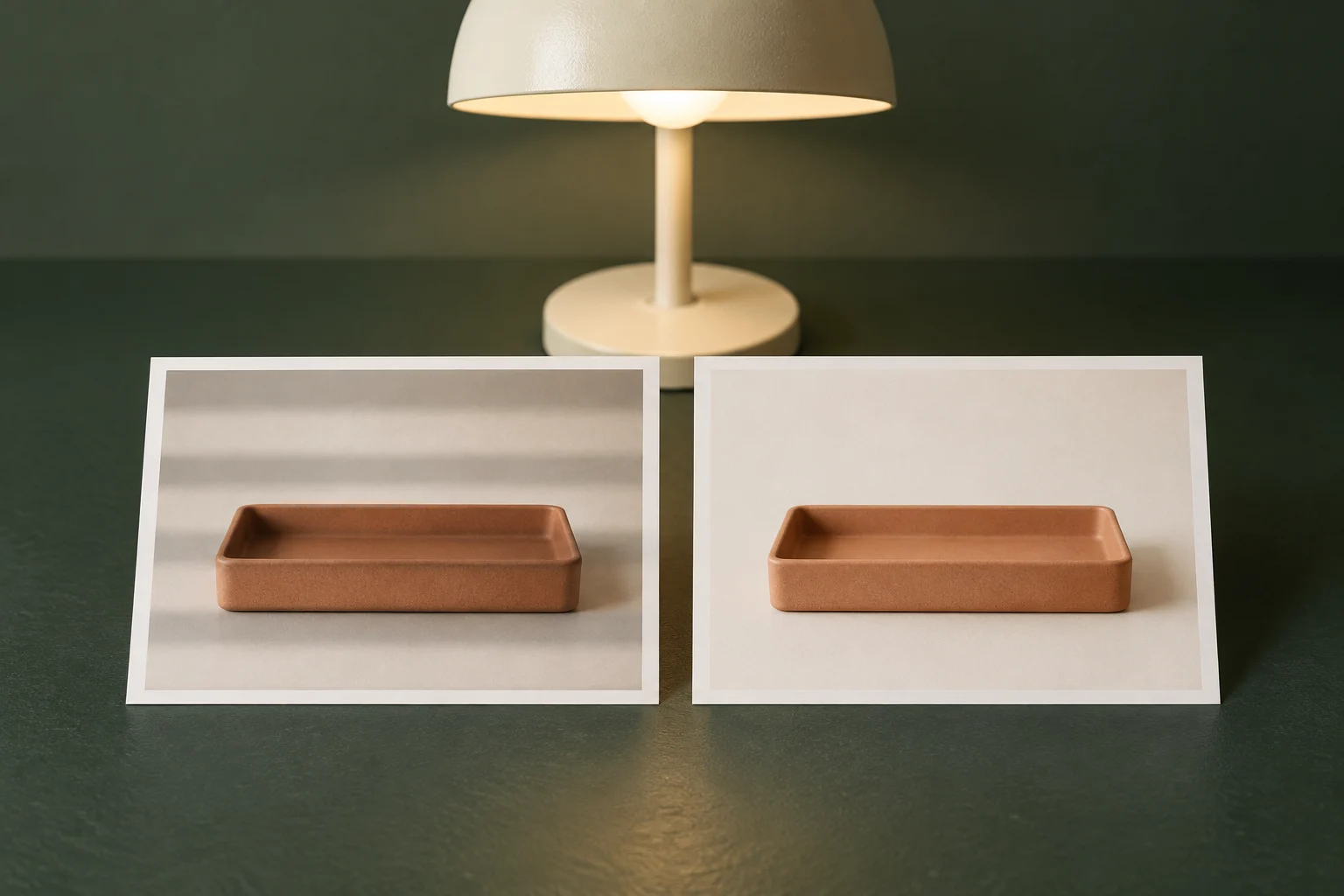
The cover is a conceptual illustration of uneven and even light in printed references. A still image cannot demonstrate that temporal flicker has been removed from a video.
Check the light and the controls your device actually offers
Samsung explains that rapidly varying fluorescent or LED lighting can appear as flickering or a moving black bar in a Galaxy camera image. Its support page suggests adding light, disabling Super steady when that mode is active, or trying a slower shutter in Pro Video. These are device- and mode-dependent checks. They are not a promise that every lamp, phone or capture mode behaves the same way.
First record your current light sources and mode. If you can use a different light source, compare a short take with the suspect room lamp switched off, keeping the camera setup and action as similar as practical. For a camera comparison, return to the original lighting and change only one available control. If a control is absent, do not invent an equivalent menu; check guidance for the actual model and camera app.
Frame rate counts frames per second; shutter time describes the exposure interval for a frame. Selecting a frame rate does not mean you directly selected that shutter time. Apple documents model-dependent recording formats, including PAL options on supported iPhones, and available frame rates. Its guide does not promise that choosing PAL or 25 fps removes flicker from every indoor recording.
Review the whole action after any change. A take with fewer bands may still have unsuitable brightness, motion, stability or product detail. Keep the agreed delivery requirements in view. If the proposed capture or output format changes the agreement, resolve that before filming the complete assignment.
A fictional tray test: decide from the observation
Imagine a practice video in which one wooden block is placed into a matte desk tray, followed by a pause. The rows below describe possible observations and next decisions, not tests we performed or a sequence guaranteed to succeed. Each comparison starts from the recorded baseline unless stated otherwise.
Illustrative test decisions; all observations are hypothetical
Scroll sideways to see all columns.
| Test or comparison | Possible observation | Next decision |
|---|---|---|
| A — save the action under the room lamp in the current camera mode | A dark band moves across both the tray and the still background during playback | Keep file A and note the lamp, mode and visible timing. Compare a supported change before recording the full video. |
| B — repeat A with that lamp off and another available light source, keeping the camera setup | The repeated bands are no longer noticeable, but the tray is too dark | The lighting comparison is useful, but B is not ready to use. Improve the usable light and record another test; do not call the scene solved. |
| C — return to A’s lighting; if Super steady was active on a supported Galaxy, compare it switched off | Bands are less noticeable, but the moving shot is less stable | Review whether a steadier setup fits the intended action. Retest it and inspect the product detail; reduced bands alone are insufficient. |
| D — replay the same original file on another available viewing surface | The symptom appears on only one surface | Record the viewing difference and investigate it. Do not declare the source good or bad from this comparison alone. |
You do not need to try every row. Choose the comparison that fits the symptom and the controls you actually have. If the cause remains unclear, stop accumulating full takes under the same uncertain setup and seek guidance for the device, app or light involved.
Keep a short record you can repeat
Write down what changed and what the new recording showed. A setting remembered from a different room is not evidence for today’s lamp. Keep the original comparison clips until you have selected and checked the final take.
Product action: place a wooden block into a tray, then pause
Baseline file and visible issue: [filename; where/when the symptom appears]
Device, camera app and mode: [actual values]
Light sources and available recording settings: [actual setup]
One change for this comparison: [light OR supported camera control]
New file and playback observation: [filename; full action and still background]
Other effects: [brightness, motion, stability, product detail]
Unresolved question or delivery constraint: [specific issue]
Next step: [retest, investigate or record with the checked setup]
Check the final take and the export
- Replay the complete selected recording at normal speed, including the pause and the product movement.
- Export using the agreed delivery requirements and replay that file too; a clean preview is not an export check.
- Recheck if the lamp, filming location, camera app or capture mode changes.
- Keep a specific note of any unresolved symptom and the viewing surface where it appeared.
For a portfolio exercise, describe the real filming and checking you did without presenting the fictional table as your results. A usable sample demonstrates a particular piece of work; it does not establish that one setting will prevent flicker in every future project.
How this fits UGC Stage
UGC Stage is an application in development connecting brands and creators. Its planned portfolio feature lets creators showcase selected videos, photos and audio. After recording and checking a real practice clip, you could select it as evidence of your filming work and describe your role beside it. Label self-initiated work honestly; keep troubleshooting notes with your own production files. The planned portfolio is a place to present work, not a camera control or flicker-repair tool. Join the creator launch list to hear when the application becomes available.
Explore the applicationSources and notes
Practical guidance from the UGC Stage team. Examples are educational, not customer results or income guarantees.