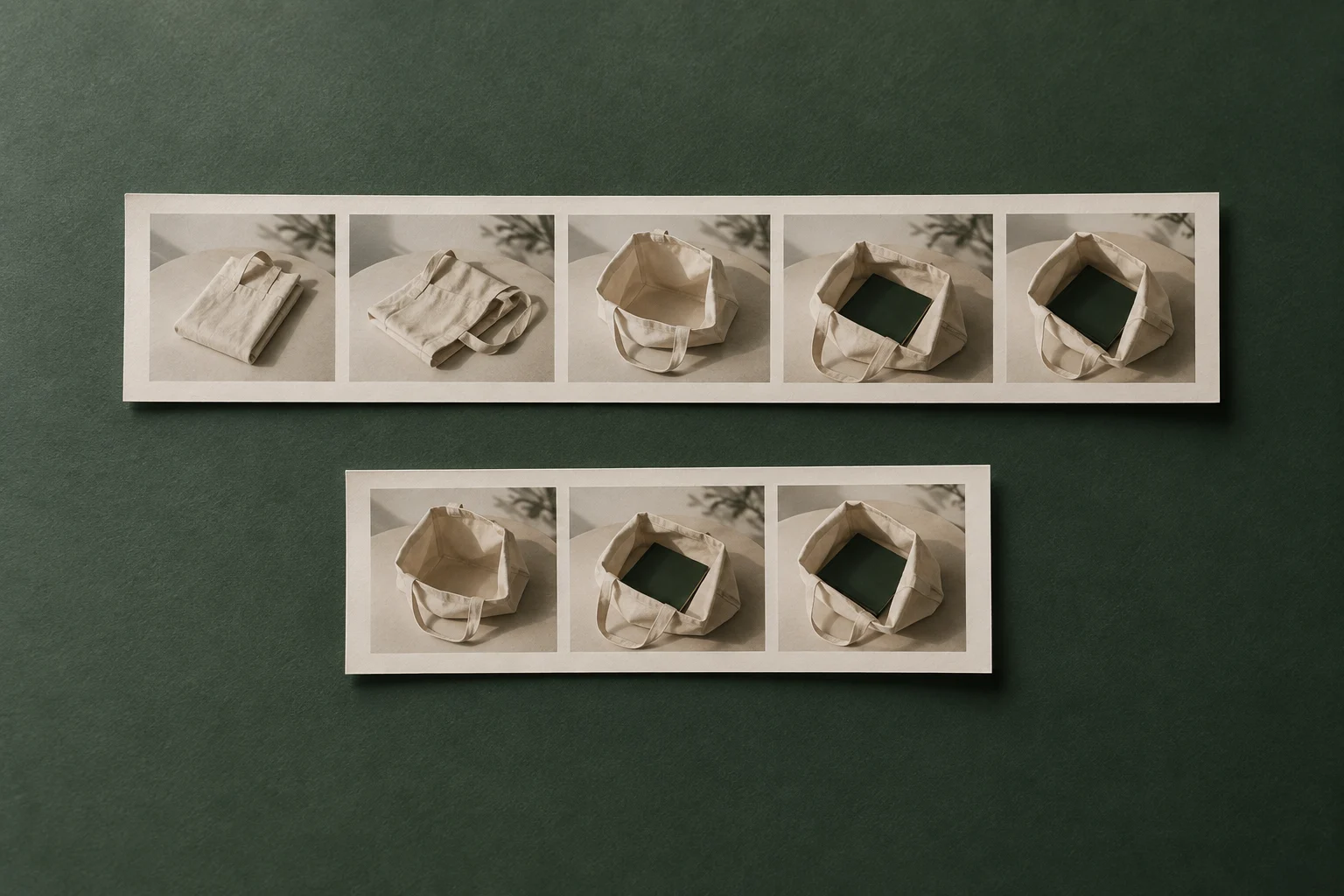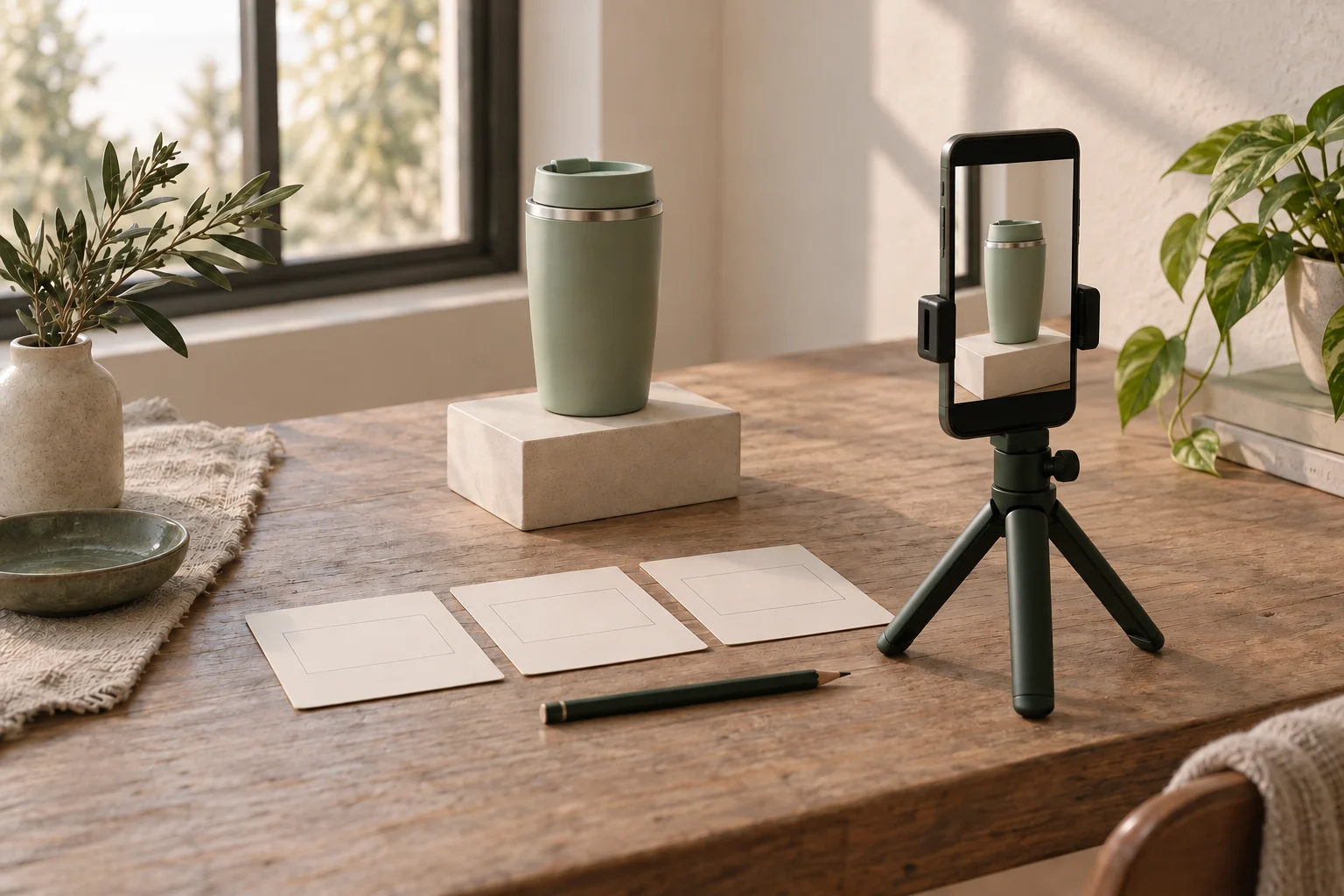

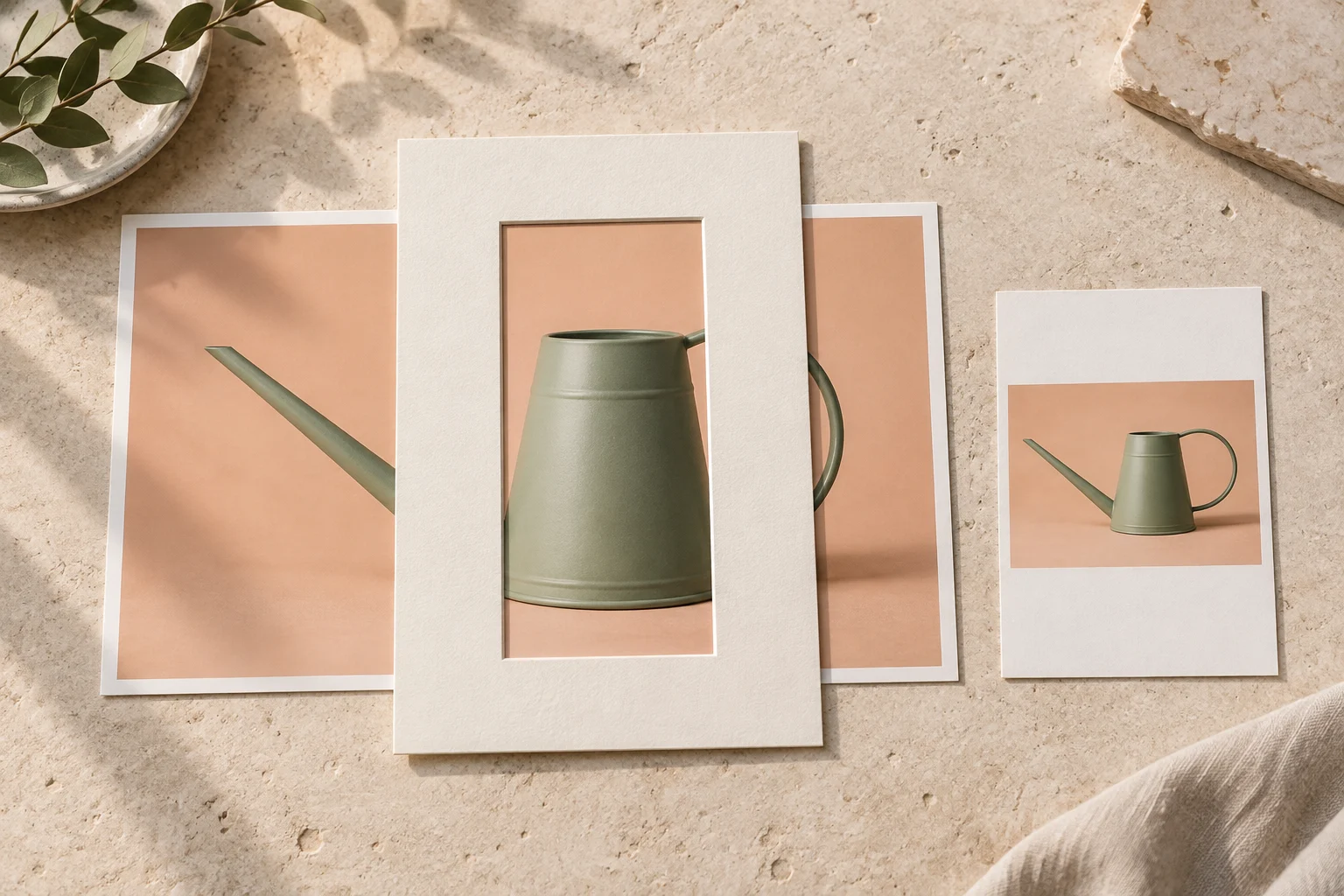
Before turning a wide product video into a portrait version, name what the viewer must see throughout the action. A crop that looks good at the start may hide the handle, spout or point of contact a moment later. Compare the visible information through the whole clip before deciding that the existing footage can deliver the requested version.
Define the picture the new version must preserve
Confirm the requested output shape and the purpose of the shot before editing. A 16:9 source and a 9:16 deliverable are an example, not a universal rule for every destination. Confirm the actual delivery requirements. Changing the canvas shape is separate from shortening the video; preserve the agreed duration and message unless a different edit is also requested.
Write down the essential visible information: relevant product parts, the hand or tool using them, the contact point and the result the shot needs to show. Review the original from beginning to end. An attractive opening frame cannot establish whether those details survive the movement.
Keep an unchanged source and a separate version of the edit. The cover illustrates a narrow viewing area using physical paper prints; it is not a demonstration of an actual video conversion or successful tracking.
Compare a cropped picture with the full picture
Microsoft’s Clipchamp guide distinguishes changing a project’s aspect ratio from adjusting the media inside it. It describes cropping to fill the canvas, repositioning the picture and fitting the original picture with borders. It also recommends checking each individual clip after changing the ratio. These are editor-specific instructions; check the controls available in your own tool.
A filling crop enlarges the selected area and removes picture at the edges. A fixed crop may work if all required information remains inside it for the complete action. Reposition it and replay the whole clip before accepting it. If your editor supports changing the crop position over time, that may follow a moving subject, but moving the window cannot show two widely separated details at once when both do not fit.
Keeping the full original picture inside a portrait canvas retains its edges, with space around it. That may preserve the complete movement while making important detail too small at the intended viewing size. Review that tradeoff explicitly. Avoid stretching the product to fill the frame: a distorted shape is not a substitute for retaining the required information.
A fictional watering-can example: both ends matter
Imagine an existing landscape clip of a small watering can. The agreed shot shows the hand holding the handle, a small turn that reveals the spout and body together, then a pause. Both the handle grip and spout must remain understandable during the turn. No pouring or watering-performance claim is part of this example. These observations are hypothetical; we did not film or export this sequence.
Illustrative decisions for one wide object and one complete movement
Scroll sideways to see all columns.
| Moment or candidate | Information to inspect | Decision if the stated problem appears |
|---|---|---|
| Start — try a centered portrait crop | The handle grip and spout are both required; the crop retains the body but cuts off the handle. | Reject this framing even if the body looks attractive. Reposition and check both ends again. |
| Middle — shift the crop toward the handle during the turn | The handle returns, but the spout leaves the visible area at the same moment. | A moving crop has not solved the conflict. Compare a wider visible area within the portrait canvas, rather than treating tracking as proof. |
| Whole clip — retain the landscape picture inside the portrait canvas | Both ends remain visible, but the grip may be too small to understand on the intended screen. | Check the exported size in context. Keep this candidate only if the required action remains readable and the layout is acceptable for the agreed use. |
| End — the can rests with both ends visible | The last frame looks complete, although the required grip was missing during the turn. | The final pose does not repair missing action. Review the full sequence and identify what a replacement shot would need to show. |
If no treatment preserves the agreed information clearly, explain the limitation using the relevant moment in the existing clip. Propose a separately agreed shot composed for the portrait frame, or ask whether the required action or layout can change. Do not silently replace the turn with a static product image or assume new filming is included for free.
Record the version and the unresolved work
Use a short record so that “make it vertical” becomes a concrete deliverable. Record what the actual candidate shows, including missing information; the template is a planning aid, not proof that the edit passed.
Source clip and edit copy: [filenames]
Agreed output shape, duration and use: [actual requirements]
Required visible information: [product parts, interaction and result]
Candidate treatment: [fixed crop / changing crop if supported / full picture in canvas]
Start, middle and end: [time references and what remains visible]
Detail at intended viewing size: [readable / too small / still to check]
Export inspected: [filename and viewing surface]
Unresolved limitation: [exact missing information]
Next step: [revise framing / agree a layout change / agree a new shot]
Included work and additional scope: [confirmed agreement]
Watch the exported movement before delivery
- Replay the actual export at normal speed, then inspect moments where the product reaches an edge or changes direction. Check every clip, including transitions into and out of the action.
- Check product proportions and the required interaction at the intended viewing size. Visible but unreadable detail is still unresolved.
- Recheck captions and other visible text after reframing. If the destination adds interface overlays, check the version in that destination separately.
- Confirm the export matches the agreed duration and layout. If framing or source footage changes again, repeat the relevant checks.
The outcome is a specific reviewed version, or a precise explanation of why the available footage cannot satisfy the request. Neither a selected aspect-ratio preset nor an automatic reframing feature can replace that judgment.
How this fits UGC Stage
UGC Stage is an application in development connecting creators and brands. Its planned creator-defined packages let creators describe their deliverables and prices. When planning a package, specify which aspect-ratio exports are included and whether a new edit or new filming would need a separate agreement. One portrait export from existing footage is a different promise from filming a replacement shot if that footage cannot show the required action. Keep the reframing review in your own editing workflow; Stage is not presented as a video editor. Join the creator launch list to hear when the application becomes available.
Explore the applicationSources and notes
Practical guidance from the UGC Stage team. Examples are educational, not customer results or income guarantees.